Trending

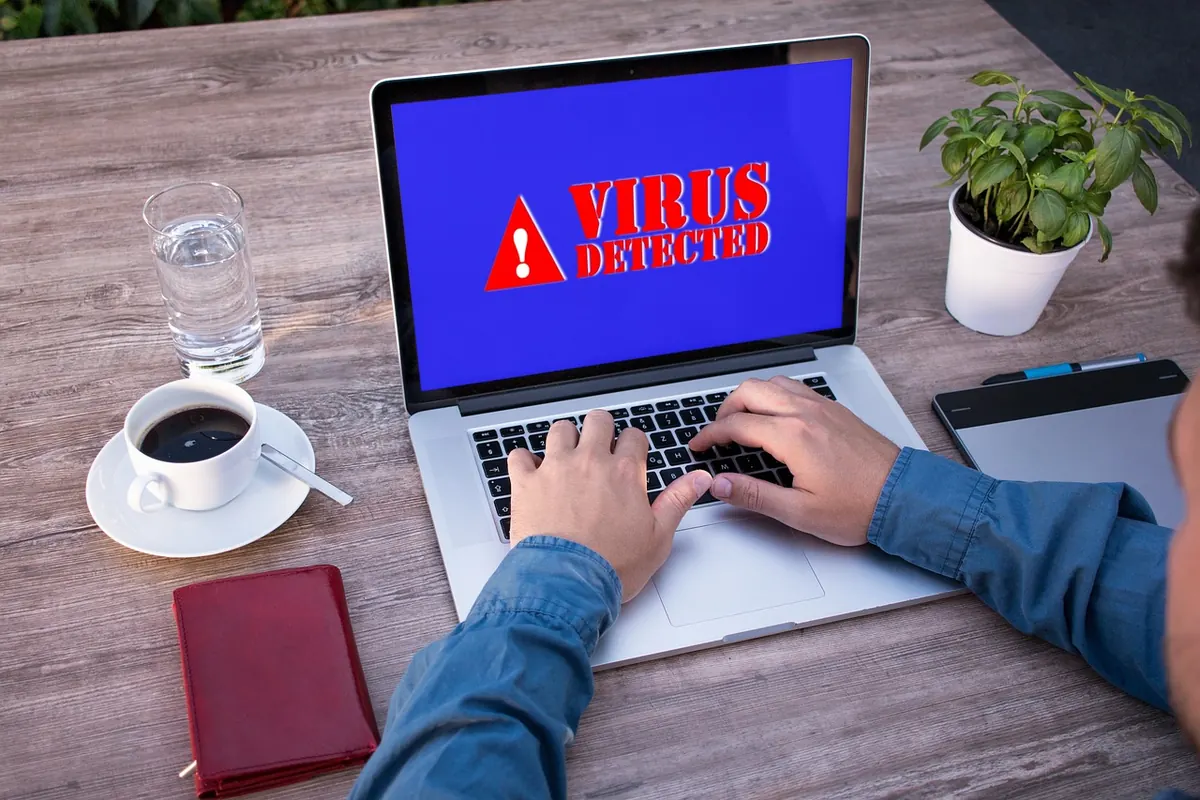
Most home networks are not breached by someone who picked you out of a crowd. They are found — by automated scanners sweeping IP ranges, by malware bundled with a cracked app, by a router still using the password printed on its sticker. The symptoms look the same either way: a device in the router's list you don't recognize, a bank alert you can't account for, a laptop that runs hot every night around 2 a.m.
You don't need a security operations centre to deal with that. You need a plan you wrote down beforehand, short enough to follow while your hands are unsteady. Seven steps, one page, and a couple of hours of setup.
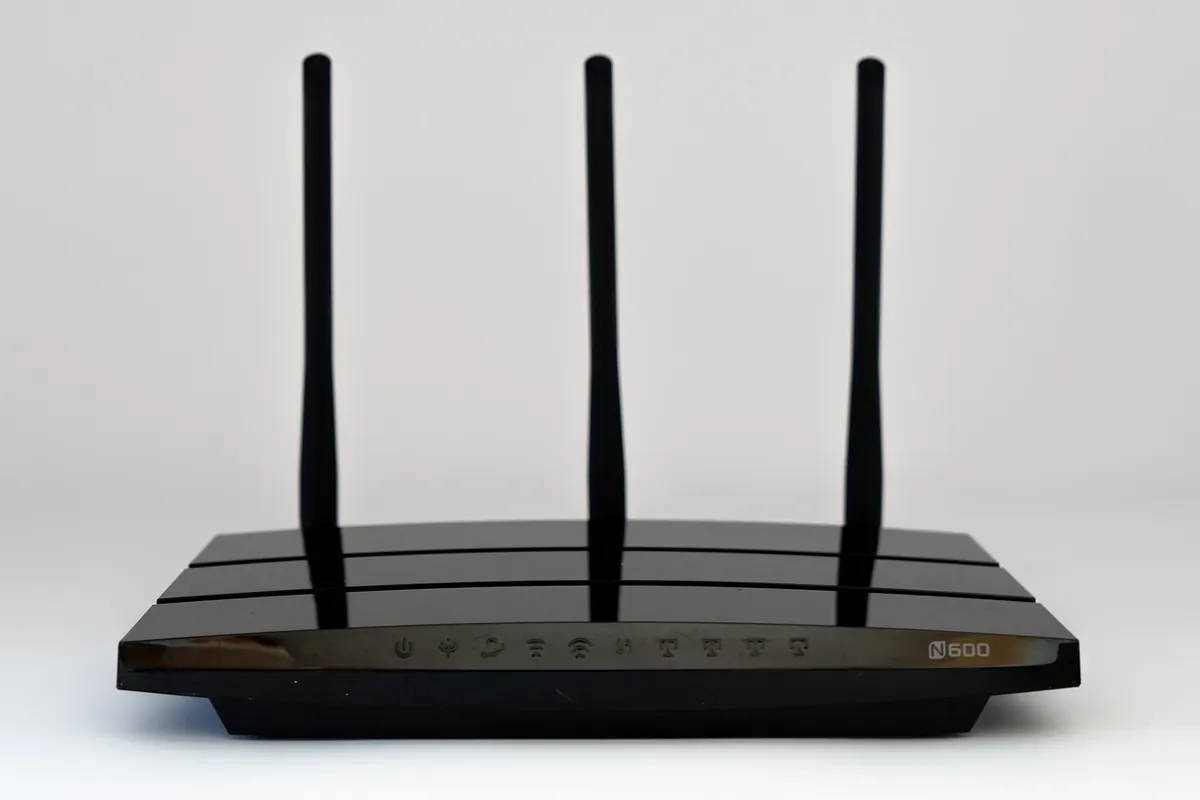
For most households, the honest answer to "how many devices are on your network?" is a shrug. Fix that first, because every later step depends on it. Open your router's admin page — usually 192.168.1.1 or 192.168.0.1, with credentials on the sticker unless you changed them — and find the connected clients or DHCP lease table.
Record, in a note or spreadsheet:
Then split them into two piles: devices you'd notice going offline (laptops, phones, the NAS) and devices you'd forget about for months (doorbell, printer, thermostat). The second pile is where trouble usually hides.
A baseline is just a sentence you can compare against later: "fourteen devices, quiet between midnight and 6 a.m., nothing unusual in the router log." Write it down. Without it, every oddity feels either alarming or ignorable, and you'll guess wrong.
You are not hunting sophistication. You are watching volume, timing and geography: a camera uploading at 3 a.m., a laptop reaching a domain in a country you have no reason to contact, twenty failed logins on the router admin page.
Instinct says factory reset. Don't. A reset wipes the logs that would have told you what happened and when. Instead, cut the network's reach without destroying the record:
Containing the incident is worth more than understanding it in the first hour. You can always learn the details later from a saved log.
Screenshot the client list, export or photograph the router log, and note times with your timezone. Don't delete the strange email or the text you received. Build a plain timeline in a text file kept somewhere other than the suspect machine — a phone, a USB stick, a notebook.
Twenty minutes of note-taking now beats an hour of guessing later, especially if money or an account has been touched and you need to explain what happened to your bank or your employer's IT team. If it turns out to be nothing, you've lost almost nothing.
Recovery is a rebuild. Treat anything you can't vouch for as compromised. Change passwords in order of value: email first, because it controls the reset links for everything else, then banking, then the rest. Use a password manager so the new credentials are actually different, and prefer an authenticator app or hardware key over SMS codes.
Check your email account's forwarding rules and recovery addresses — added rules are a favourite way to keep access after a password change. Reinstall the operating system on an infected computer from clean media rather than running another cleaner, factory reset the affected gadgets, and replace the router outright if it stopped receiving firmware updates years ago. Restore backups only if you're confident they predate the compromise, and test one file before trusting the whole set.
If money has moved, or identity documents are involved, contact your bank immediately and consider speaking to a professional — a few hours of an expert's time is cheaper than months of cleanup.
Set a reminder every three months and spend twenty minutes: confirm the inventory is current, install firmware updates, test that a backup actually restores, and walk the household through the first two moves. Everyone in the house should know three things — unplug the router's internet cable, tell someone, and don't delete anything. A plan nobody has read is just a document.
Condense the whole thing onto a single sheet and tape it inside a kitchen cabinet:
That card will not stop every attack, and it isn't meant to. It stops the twenty minutes of panic that turn a contained problem into a week of lost accounts. Print it, tell the people you live with where it is, and update it when you buy something new that plugs into the wall.
Photo: USA-Reiseblogger / Pixabay